How to Record a Phone Call on Android or iOS Without an App (2026)
Independently fact-checked against primary sources (last audited August 5, 2026). How we verify our legal content
Recording a phone call on Android or iOS does not always require a third-party app anymore. Since iOS 18.1, the iPhone Phone app has a built-in Call Recording feature, and Google's Phone app now records calls natively on Pixel and many other Android phones, including newer Samsung Galaxy devices, in supported countries. If your phone or country is not covered yet, you can still record with an external device, Google Voice, or a recording app. Either way, check whether your state requires one-party or all-party consent before you hit record.
"How to record a phone call" seems like an easy question with a straightforward solution. If you own an older Android phone or iPhone, though, you understand the frustration of third-party apps that flood your device with ads, built-in voice recorders that used to ship disabled, and a phone that freezes mid-call.
Here is what you need to know.
Quick take:
- Some two-party consent states prohibit call recording without the consent of all parties on the call.
- Newer iPhones (iOS 18.1+) and many newer Android phones now record calls natively, no app required.
- An external recorder or the two-phone method works without installing software, but audio quality depends on your setup.
- Google Voice lets you record incoming calls for free through its VOIP app.
- If your phone lacks a built-in recorder, a paid app like TapeACall is usually the most reliable option.
The legality of recording a phone call in the US
Below are recording solutions that actually work. But first, the question everyone asks: is recording a phone call without the other person's consent legal in the US?
Under federal law, one-party consent means only one person on a call, including you, has to agree to a recording for it to be legal. That means it is good practice to tell the other person you are recording, but you do not have to. State and international laws vary, so be careful about whom you share the recording with. Most states, including Alabama, Alaska, Arizona, Indiana, and the rest of the one-party consent list, follow this federal rule.
States that require all-party consent include California, Connecticut, New Hampshire, and Maryland. See the full list at the link above.
But remember, if you tell someone you are recording a conversation and they stay on the line instead of hanging up, that can count as implied consent, even in an all-party consent state.
Do you want the other person to know you are recording? If not, set up your equipment before the call comes in. The tell-tale signs that someone is recording a phone conversation include unusual crackling noises, brief bursts of static, or key-tone beeps, though in many cases there is no sign at all. If you are unsure whether a call is being recorded, either hang up or ask.
What if you are not a party to the conversation at all? Depending on state law, listening in on or recording someone else's call without being on it can amount to eavesdropping or wiretapping.
With that in mind, here is how to record a phone call.
How to record a phone call using an external device
If your iPhone runs iOS 18.1 or later, you already have a built-in option. Open the Phone app during a call, tap the call controls, and tap Call Recording. Both people on the call hear an audio notice that recording has started, and the recording, along with a transcript, is saved to a Call Recordings folder in the Notes app. See Apple's instructions for recording and transcribing a call for the exact steps and to check whether the feature is available in your country.
If your iPhone is older, or the feature is not available where you live, you have limited options in the App Store. Even if you find an app that works, the tradeoff is often a slower device and a screen full of ads.
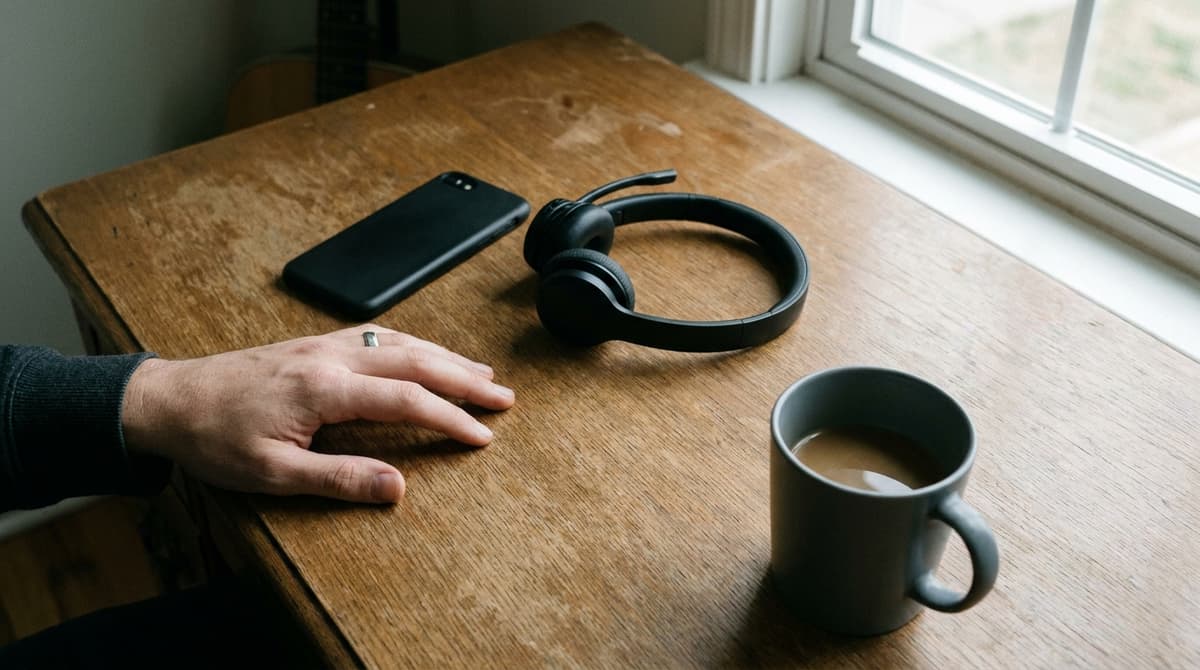
To get around this problem, you can use an external recording device. Devices like this do not require you to install a support app, and you do not need to change any settings. The question is, how do you get good audio quality?
What device do you have?
Several factors affect call quality when you record, including background noise, how you hold the phone, and the microphone in your specific device. Some phones handle this well; others do not. If you plan to start a podcast or record calls regularly, invest in a device with a good microphone and speaker.
If you have a device capable of good audio, we recommend:
- Regularly clean your receivers and speakers.
- Optimize audio in your phone's settings.
- Use a reliable carrier or Wi-Fi connection.
- Make sure the person you are talking to also has a decent device and connection.
How to use external devices to record phone calls
When it comes to external recording devices, you have three main options. One is a dedicated voice recorder. Two, use the two-phone method. Three, use a computer.
Most current iPhones and many recent Android phones no longer have a headphone jack, so the two options below work best on an older phone, a budget Android device, or with a USB-C or Lightning to 3.5mm adapter.
Option 1: external voice recorder
External voice recorders such as the Olympus TP-8 telephone pickup microphone plug into your phone's headphone jack and pick up both sides of the call. These devices are easy to set up and the audio quality is generally acceptable. There are plenty of alternatives at different price points. Check reviews and verified customer feedback before you buy.
Option 2: the two-phone method
This option requires two devices. Turn on the recorder on one and the speakerphone on the other. To improve audio quality, record in a quiet room with good devices on both ends, though that alone may not be enough. For better results, we recommend adding an external microphone to the recording device.
How?
You will need a 3.5mm headset splitter adapter.
The problem with plugging a microphone directly into your phone's headphone jack is that the phone recognizes the device as earphones and will not record audio from it. Because of that, you need a headset splitter adapter, a cable with two female ports and a single male 3.5mm TRRS plug, like the Kingtop 3.5mm combo audio adapter.
Plug the microphone into the adapter, then the adapter into the phone.
How to amplify call audio
On Android, you can download Google's Sound Amplifier, an app designed to reduce background noise and customize sound. Some people also put their smartphone in a dry paper cup to amplify the speaker.
Tips:
- Record in a quiet room.
- Close the windows; wind can shift sound direction and add noise.
An easy fix is to connect your phone to Bluetooth speakers, then use a microphone connected to another smartphone or recording device to capture the call.
Recording audio on windows 10
If you have a Bluetooth-enabled Windows PC, you can pair it with your phone and take calls through it using the Phone Link app (called Your Phone on older versions of Windows 10). Once the call connects on your PC, you can capture the audio with a screen or audio recorder such as the built-in Windows Voice Recorder.
Microsoft's Windows Subsystem for Android, previously described here as a way to run Android call-recording apps directly on a Windows 11 PC, was discontinued in March 2025 and is no longer available. Phone Link plus a PC-side recorder is the more reliable option now.
Remember that Bluetooth range matters, so keep your phone close to your computer while you record.
Google Voice
Available on Android and iOS, the Google Voice app lets you make, receive, and record phone calls. Google Voice is a VOIP (voice over internet protocol) service that does not require you to share your phone number or other sensitive information. It is free and lets you merge multiple numbers into one, which makes it useful for a small business.
To record a call with a personal Google Voice account, turn on Incoming call recording in Google Voice's call settings, then press 4 on the keypad during an incoming call to start or stop recording. This only works for calls you receive; recording outgoing calls requires a paid Google Workspace plan.
To set up an account, go to voice.google.com.
Google Voice is currently available in the US and Canada.
Replace your phone app with Truecaller or similar app
Designed to verify and block unwanted calls, Truecaller is a phone app available on both Android and iOS. The free version offers caller ID and spam blocking. The Premium plan adds AI-powered call recording with searchable transcripts, on top of caller ID and spam blocking.
How to use Truecaller to record phone calls:
- Download Truecaller and set it as your default phone app.
- Open Truecaller's settings and turn on Call Recording under the Premium features.
- Start a free trial or subscribe to Premium if you have not already.
- Recordings are saved on your device, with iOS able to back up to iCloud and Android to Google Drive.
How to record a phone call using Android and IOS apps
Free recording apps tend to have two main problems. One is ads that slow down your device or hijack your taps. Two, some do not work well, some are insecure, some reroute your calls, and the audio quality can be poor. Because of that, a paid app or service is usually worth it. TapeACall is one of the more established options. It offers clear recordings in mp3 format, no ads, and is easy to use on both iPhone and Android.
Why install TapeACall?
- You can transfer recordings to a new device or upload them to Google Drive, Evernote, or Dropbox.
- TapeACall can automatically record Zoom meetings.
- You can share a recording directly to social media or by text message.
The app can slow down older devices. If yours is a few years old, close background apps before you record.
Free Phone Recording App for IOS
The best free option for recording calls on iPhone is no longer a third-party app. If you are on iOS 18.1 or later, the built-in Call Recording feature in the Phone app is free, does not need to be installed, and saves a transcript along with the audio in the Notes app. See Apple's support page for setup steps.
If your iPhone cannot run iOS 18.1, or you want a free option with more editing and sharing features, look for a call recorder in the App Store and read recent reviews before installing. Rev's standalone Call Recorder app, which used to be a common recommendation here, shut down in October 2025, so confirm that any app you pick is still actively maintained before you rely on it.
How to record a phone call on Android
Android phones offer several ways to record calls.
- Use the phone's built-in Call Recording feature, if your device and country support it (see below).
- Download a voice recording app from the Play Store.
- Turn on the speakerphone and use another device to record.
- Link your phone to a Windows PC with Phone Link and record the audio there.
- Use an external voice recorder that connects to your phone.
Samsung Galaxy phones running One UI 7 or later have call recording built into the Phone app in the US and many other countries. See Samsung's instructions for recording calls on Galaxy phones for setup steps and to check availability in your region. Pixel phones running Android 14 or later have a similar built-in feature; see Google's Phone app recording guide.
An external voice recorder is a solid option if you would rather not install an app. It is private, reliable, and will not slow down your device.
If you prefer apps and your phone does not have a native recorder, well-reviewed options include:
- TapeACall
- Truecaller
- Easy Voice Recorder
Some phones sold outside the US and Canada come with a recording option built into the stock dialer, so check your device's settings first. We have a full article on how to record a call on Android with or without an app if you want more detail.
You can also use Google Voice, as described above.
Updates
Independently fact-checked against the cited primary sources
Updated for 2026: added Apple's built-in iOS 18.1+ Call Recording feature (Phone app plus Notes), Google's native Android call recording rollout on Pixel and other phones, and Samsung Galaxy's One UI 7 call recording, now that built-in recording is available on many phones without installing anything. Noted that the Rev Call Recorder app referenced in an earlier version of this guide shut down in October 2025 and removed it as a recommendation, and that Windows Subsystem for Android, previously described as a way to run Android call-recording apps on a Windows 11 PC, was discontinued in March 2025. Removed a link to a covert phone-monitoring app that was not an appropriate recommendation for legally recording your own calls, corrected the implied-consent explanation to apply to all-party consent states rather than one-party consent states, repaired stripped links throughout the article, and completed a title and meta description that had been cut off mid-sentence.
The Law Behind This Article
This article rests on the statutory provisions below, held in our own legal record and retrieved from the official source. Tap a section to read the operative text.
United States Code Title 18
§ 2511Interception and disclosure of wire, oral, or electronic communications prohibitedIn forcecited in 441 of our articles
Except as otherwise specifically provided in this chapter any person who— intentionally intercepts, endeavors to intercept, or procures any other person to intercept or endeavor to intercept, any wire, oral, or electronic communication; intentionally uses, endeavors to use, or procures any other person to use or endeavor to use any electronic, mechanical, or other device to intercept any oral communication when— such device is affixed to, or otherwise transmits a signal through, a wire, cable, or other like connection used in wire communication; or such device transmits communications by radio, or interferes with the transmission of such communication; or such person knows, or has reason to know, that such device or any component thereof has been sent through the mail or transported in interstate or foreign commerce; or such use or endeavor to use (A) takes place on the premises of any business or other commercial establishment the operations of which affect interstate or foreign commerce; or (B) obtains or is for the purpose of obtaining information relating to the operations of any business or other commercial establishment the operations of which affect interstate or foreign…
Official text (excerpt) · last checked 2026-09-17 · Read the full text in our law library · Verify at uscode.house.gov
Cited in 2,045 court opinions in our collectionLatest citing opinion in our collection: 2026
In the courts (editorial summary, independently checked):Griggs-Ryan v. Smith (1990) applied the Section 2511(2)(d) prior-consent exception, treating a tenant repeatedly told that all incoming calls were taped as having impliedly consented. United States v. United States District Court (1972) read the then-current Section 2511(3) as conferring no presidential surveillance power.
Opinions citing this section in our collection:
- Mitchell v. Forsyth (Supreme Court of the United States 1985, 472 U.S. 511)✓The Attorney General authorized a warrantless 1970 national security wiretap that caught the plaintiff's calls; the Court held the since-repealed Section 2511(3) disclaimer left the tap lawful under Title III, and that Mitchell had qualified immunity.
- United States v. United States District Court for the Eastern District of Michigan (Supreme Court of the United States 1972, 407 U.S. 297)✓The Attorney General approved warrantless wiretaps on members of a domestic group accused of bombing a CIA office; the Court read Section 2511(3) as a congressional disclaimer conferring no surveillance power, then held the Fourth Amendment required prior judicial approval.
- Forsyth v. Barr (Court of Appeals for the Fifth Circuit 1994, 19 F.3d 1527)✓Dallas police used, in an internal affairs probe of an officer, calls private parties allegedly intercepted illegally; assuming that was unlawful, the Fifth Circuit held Section 2517(1) and (2) allowed the disclosure and use, defeating the Section 2511(1)(c) and (d) claims.
Identified automatically from the court opinions citing this section — not a ranking of which case controls.
Also relied on in: Can an Employer Record Conversations Without Consent? (2026), Can I Record My Boss Harassing Me? State-by-State Legal Guide (2026), Can I Sue Someone for Recording Me on Private or Public Property?
Sources and References
- two-party consent states
- US recording laws by state
- 18 U.S.C. Section 2511 - one-party consent exception (Cornell LII)(law.cornell.edu)
- one-party consent states
- Apple: How to record and transcribe a call on iPhone(support.apple.com)
- Apple App Store(apple.com)
- Olympus TP-8 telephone pickup microphone(amazon.com)
- 3.5mm TRRS headset splitter adapter(amazon.com)
- Kingtop 3.5mm combo audio adapter(amazon.com)
- Google Sound Amplifier (Play Store)(play.google.com)
- Google Voice: record calls(support.google.com)
- Google Voice sign-up(voice.google.com)
- TapeACall(tapeacall.com)
- Samsung: how to record phone calls on Galaxy phones(samsung.com)
- Google Phone app: record calls(support.google.com)
- Truecaller(truecaller.com)
- How to record phone calls on Android devices